Terminal UI (TUI)
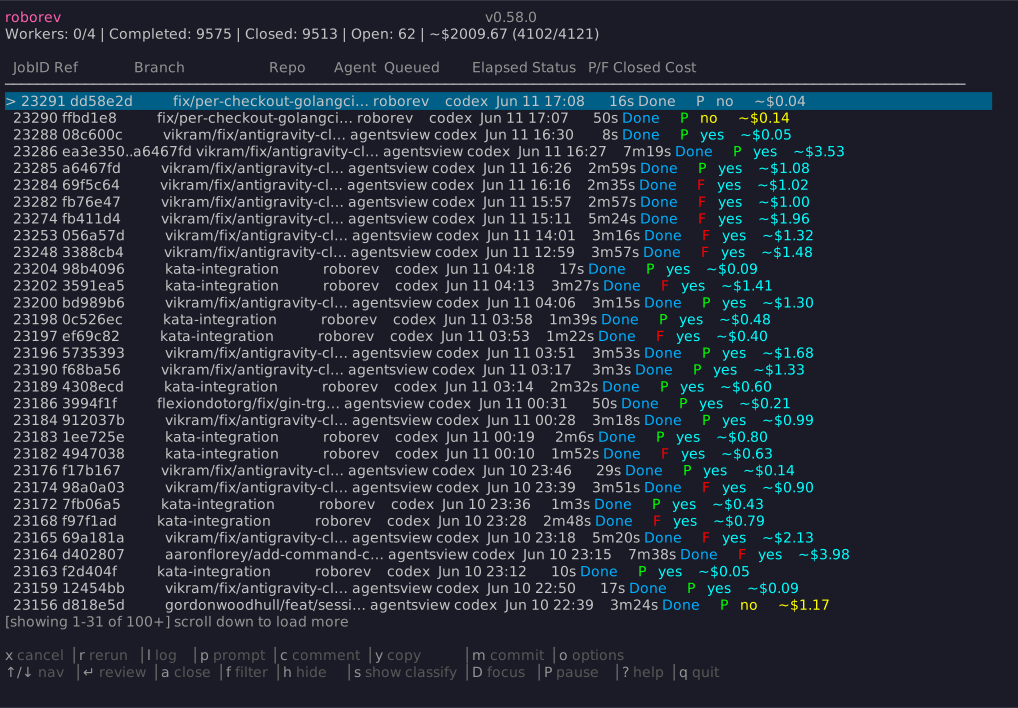
The interactive terminal UI (roborev tui) is the primary interface for working with roborev reviews. The queue updates in real time by subscribing to the daemon event stream over SSE; polling is retained as a 15-second fallback. The review queue acts as a ledger: every commit review is recorded, and each entry stays open until you explicitly close it (or until auto_close_passing_reviews closes passing reviews automatically). This creates an accountability loop that ensures every line of agent-generated code is reviewed and every finding is resolved.
roborev tui                         # Open TUI
roborev tui --repo                  # Pre-filter to current repo
roborev tui --repo --branch         # Pre-filter to current repo + branch
roborev tui --repo=/path/to/repo    # Pre-filter to specific repo
roborev tui --branch=feature-x      # Pre-filter to specific branch
| Flag | Description |
|---|---|
--repo [path] |
Lock filter to a repo. Without a value, resolves to the current repo. |
--branch [name] |
Lock filter to a branch. Without a value, resolves to the current branch. |
--no-quit |
Suppress keyboard quit (q) in queue and tasks views. Useful for managed TUI instances controlled externally. The quit control socket command still works. |
--control-socket <path> |
Custom path for the control socket (default: ~/.roborev/tui.{PID}.sock). |
When set via flags, the filter is locked and cannot be changed in the TUI. This is useful for side-by-side working when you want to focus on a specific repo or branch.
Queue View
| Key | Action |
|---|---|
Up/k, Down/j |
Navigate jobs |
PgUp, PgDn |
Page through list |
Enter |
View review |
Space |
Expand or collapse a panel run |
Right |
Expand a panel run |
Left |
Collapse a panel run |
l |
View job log |
p |
View prompt |
m |
View commit message |
a |
Toggle closed |
c |
Add comment |
y |
Copy review to clipboard |
x |
Cancel running/queued job |
r |
Rerun completed/failed/canceled job |
F |
Launch fix job (requires advanced.tasks_enabled) |
T |
Switch to Tasks view (requires advanced.tasks_enabled) |
o |
Column options (reorder, toggle visibility) |
f |
Open filter (repo/branch tree) |
b |
Open filter with branches expanded |
h |
Toggle hide closed/failed/canceled |
D |
Toggle distraction-free mode |
P |
Pause or resume queue processing |
g |
Jump to top of queue |
? |
Show all commands |
Esc |
Clear filters (one layer at a time) |
Ctrl-D |
Quit |
q |
Quit |
Panel reviews appear as one synthesis parent row by default. The parent row shows live progress while member reviewers run and a compact member summary after completion. Expand the row to inspect individual member jobs. Close, cancel, rerun, or fix the panel from the parent row, not from a member row.
Queue Pause
Press P in the queue to pause or resume daemon queue processing. Pausing is global: running jobs continue, but workers do not claim new queued jobs until the queue is resumed. The same state is controlled from the CLI with:
When paused, the TUI shows a persistent [PAUSED] marker in the title so the state remains visible even with filters or compact mode enabled. roborev status also reports the paused state, and roborev status --json includes a queue_paused field.
Log View
Press l from the queue view, review view, or prompt view to open the log viewer. For running jobs, the view streams live output as it arrives. Logs are persisted to disk, so they remain available after the job completes and across daemon restarts.
| Key | Action |
|---|---|
Up/k, Down/j |
Scroll output |
PgUp, PgDn |
Page through output |
Home |
Jump to top |
End |
Jump to bottom (enables follow mode) |
g |
Toggle between top and bottom |
Left, Right |
Previous/next job log |
i |
Expand or collapse the full command line |
x |
Cancel running job |
? |
Show all commands |
Esc, q |
Back to previous view |
The log view features:
- Follow mode: When a job is still running, the view polls for new output and auto-scrolls to the bottom. Scrolling up disables follow mode; pressing
Endorgre-enables it. - Incremental fetching: Only new bytes since the last fetch are downloaded, keeping the view responsive for long-running jobs.
- Formatted output: NDJSON agent output is rendered as compact progress lines showing tool calls (file reads, edits, bash commands) with a gutter prefix for visual grouping.
Logs are stored in ~/.roborev/logs/jobs/ and can also be viewed from the CLI with roborev log <job-id>. Use roborev log clean to remove old log files.
Filtering
Press f to open the unified filter view, which shows repos as a tree with expandable branch children. Press b to open the filter with branches already expanded for the most relevant repo (active filter > current directory > first repo).
| Key | Action |
|---|---|
Up/k, Down/j |
Navigate tree |
Right |
Expand repo to show branches |
Left |
Collapse repo (works during search too) |
Enter |
Apply selected filter |
| Type text | Search repos and branches |
Backspace |
Delete search character |
Esc |
Close filter |
Branches are lazy-loaded: they fetch from the daemon when you expand a repo or type a search. Searching triggers background branch loads for all repos so matches include branches you haven't expanded yet.
The current working directory's repo sorts to the top of the tree, and its current branch sorts to the top of that repo's branch list.
To start the TUI with closed items already hidden, set hide_closed_by_default = true in ~/.roborev/config.toml. To auto-filter to the current repository on startup, set auto_filter_repo = true. To auto-filter to the current branch or worktree, set auto_filter_branch = true. Both auto-filters add clearable filters (press Esc), and CLI flags (--repo, --branch) take priority when set. See Configuration for details.
Pressing h toggles the hide-closed filter for the current session without changing the config.
Esc clears filters one layer at a time in the order they were applied. Press h again to toggle hide-closed off directly.
Distraction-Free Mode
Press D in the queue view to toggle distraction-free mode. This hides the status line, table header, scroll indicator, and help footer, leaving only the title and the job list. Useful for focusing on reviews when screen space is limited.
The same compact layout activates automatically when the terminal height is below 15 rows.
Column Customization
Press o in the queue or tasks view to open the column options modal. From there you can reorder columns or toggle their visibility.
Custom column order is saved to column_order (queue) and task_column_order (tasks) in ~/.roborev/config.toml. Hidden columns are saved to hidden_columns, which accepts these names: ref, branch, repo, agent, queued, elapsed, status, pf, closed, session_id, requested_model, requested_provider, cost. When hidden_columns is not set, the Session, Req Model, and Req Provider columns are hidden by default. To show separator lines between columns, set column_borders = true.
The queue displays two separate status columns:
- Status: The job's lifecycle state: Queued (yellow), Running (blue), Done (default), Error (orange), Canceled (gray).
- P/F: The review verdict, shown once the review completes: Pass (green) or Fail (red). This reflects whether the code review found issues, not whether the job itself errored. A job can finish successfully (Status = Done) with a Fail verdict if the reviewer flagged problems.
The default-visible "Cost" column shows the model-pricing estimate from agentsview for completed jobs. The cell stays blank for unpriced models, for jobs whose usage has not been fetched yet, and on agentsview versions older than 0.30.0.
For panel parent rows, the cost column sums member costs plus synthesis cost after the panel run is complete.
The queue status line also shows approximate aggregate cost for the active filter scope when the scope contains jobs where an agent ran. This is the same lower-bound coverage model as roborev cost: if only some eligible jobs reported cost, the status line includes the priced-job coverage.
Mouse Interactions
Mouse support is enabled by default. Click to select rows, double-click to open a review, and use the scroll wheel to navigate lists.
To disable mouse interactions globally, set mouse_enabled = false in ~/.roborev/config.toml. You can also toggle this from within the TUI by pressing o to open the options menu and toggling "Mouse interactions". The change takes effect immediately and is persisted to your config file.
Review View
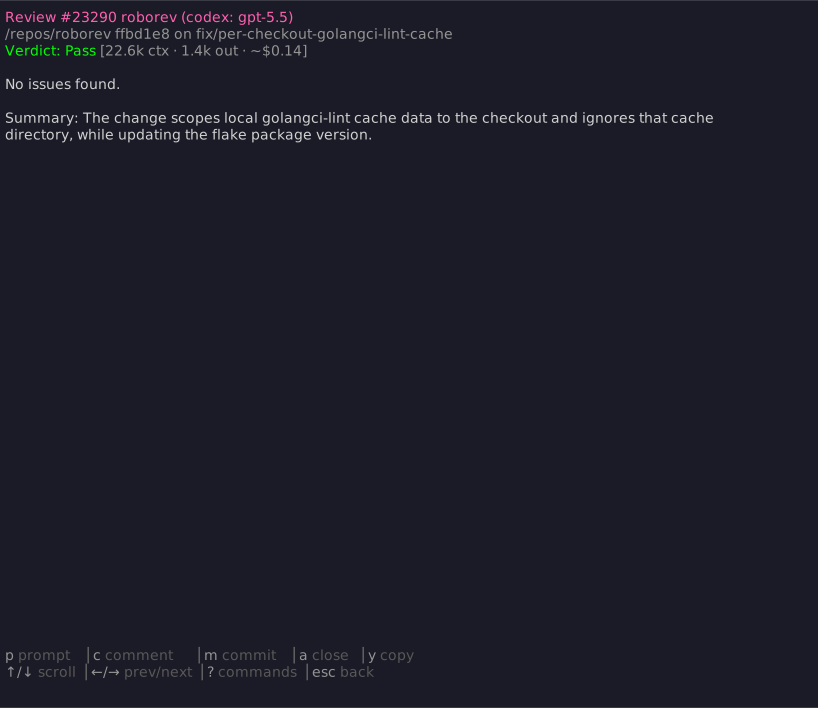
Press Enter on a job to view its review.
| Key | Action |
|---|---|
Up/k, Down/j |
Scroll content |
Left/h, Right/l |
Previous/next review (loads more if at end) |
PgUp, PgDn |
Page through content |
a |
Toggle closed |
c |
Add comment |
y |
Copy review to clipboard |
x |
Cancel running/queued job |
r |
Rerun completed/failed/canceled job |
F |
Open inline fix panel (requires advanced.tasks_enabled) |
l |
View job log |
p |
Switch between review/prompt |
m |
View commit message |
? |
Show all commands |
Esc, q |
Back to queue |
Background Tasks
The TUI includes an optional workflow for running fix jobs, applying patches, and rebasing directly from the terminal. This is disabled by default. To enable it, set tasks_enabled = true under the [advanced] section in ~/.roborev/config.toml.
See Background Tasks for the full reference.
Note
Most users should address review findings from their coding agent session using /roborev-fix or roborev fix. The background tasks workflow is intended for users who prefer to manage fixes entirely within the TUI.
Prompt View
Press p from the queue view or review view to see the prompt that was sent to the agent, along with the command line used to invoke it.
| Key | Action |
|---|---|
Up/k, Down/j |
Scroll content |
Left/h, Right/l |
Previous/next prompt |
PgUp, PgDn |
Page through content |
i |
Expand or collapse the full command line |
p |
Switch between prompt/review |
? |
Show all commands |
Esc, q |
Back to queue |
The prompt header shows the job ID, git ref, and agent. Below the header, the command line used to run the agent is displayed. It is truncated to terminal width by default; press i to wrap and inspect the full command line. The log view uses the same toggle.
Copying Reviews
Press y to copy the review content to your clipboard. This works from both the queue view (on completed jobs) and the review detail view.
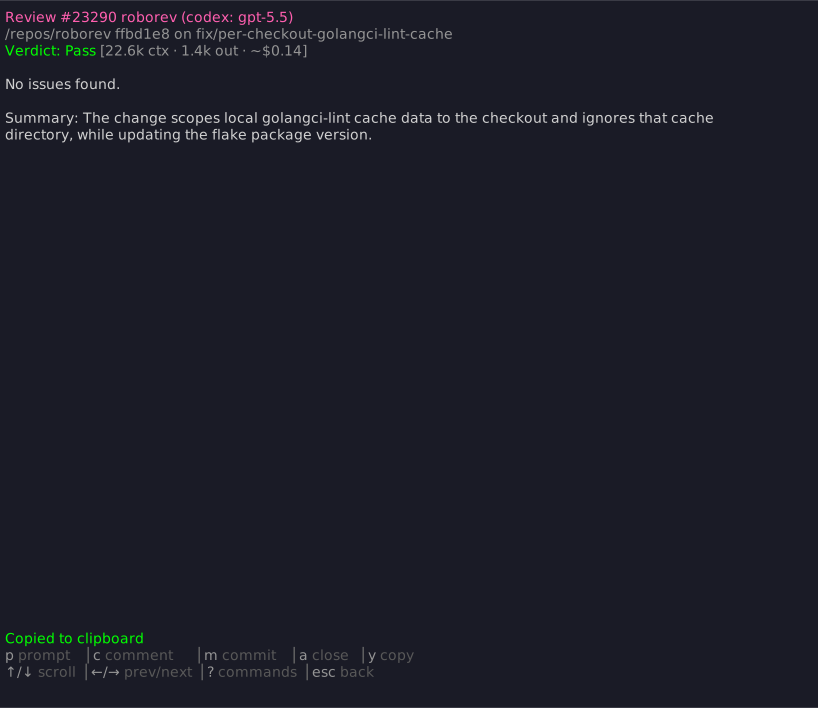
The copied content includes a metadata header for reference:
A "Copied to clipboard" message confirms the action. The primary use case is pasting the review into an AI coding agent session (like Claude Code) to address the findings. Other uses include sharing with teammates, pasting into issue trackers, or including in PR descriptions.
Viewing Commit Messages
Press m from either the queue view or review detail view to see the full commit message for the selected job. This is useful for understanding the context of the changes being reviewed.
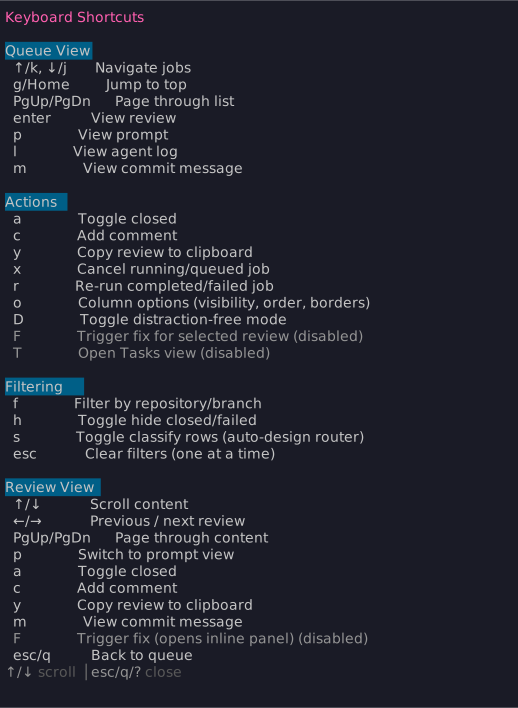
Keyboard Commands
Press ? at any time to toggle the commands overlay. This displays all available shortcuts for the current view.
Review Screen Layout
The review detail view shows:
- Line 1: Review identity: job ID, repo name, agent and model (if explicitly configured)
- Line 2: Location: repo path, git ref, branch
- Line 3: Status: verdict and closed state
Verdicts
Reviews display a Verdict (Pass/Fail) parsed from the AI response:
- Pass (green): Code review passed with no issues
- Fail (red): Issues found that need attention
Rich Markdown Rendering
Reviews and prompts are rendered with full Markdown formatting directly in the terminal. Code blocks display with syntax highlighting, and headings, lists, bold, italic, and inline code all render with appropriate styling.
Code blocks are displayed without word-wrapping. Long lines are truncated to the terminal width so diffs and code snippets stay readable. Prose text outside code blocks is word-wrapped naturally.
Tab Width
Tabs in code blocks are expanded to spaces for consistent display. The default width is 2 spaces. To change it, set tab_width in ~/.roborev/config.toml:
Terminal Escape Sanitization
Review content from AI agents is sanitized before display. Color and style codes (SGR) are preserved, but potentially harmful escape sequences (cursor movement, terminal title changes, screen clearing) are stripped. This prevents untrusted content from interfering with your terminal.
Adaptive Colors
The TUI automatically adapts to light and dark terminals. Colors are selected based on your terminal's background to ensure readability in both environments.
To override auto-detection, set the ROBOREV_COLOR_MODE environment variable:
ROBOREV_COLOR_MODE=dark roborev tui    # Force dark palette
ROBOREV_COLOR_MODE=light roborev tui   # Force light palette
ROBOREV_COLOR_MODE=none roborev tui    # Strip all colors
NO_COLOR is honored across all TUI screens, including review and prompt detail views. When set, all ANSI color sequences are stripped. See Color Mode for details.
Version Mismatch Warning
If the TUI binary version differs from the running daemon version, a persistent red banner displays at the top of the screen. This prevents confusing behavior from stale binaries (common in post-commit hooks). Restart the daemon with roborev daemon restart to resolve.
Workflow
The TUI is designed around a review, address, close cycle:
- Run
roborev tuito open the interface - Navigate to open reviews needing attention
- Press
Enterto read the full review - Address the findings: copy the review (
y) into your agent, use/roborev-fix, or runroborev fix - Press
ato mark the review as closed - Use
hto hide closed items and focus on what remains
Open reviews are your backlog. When the queue is clear, every commit on your branch has been reviewed and every finding has been addressed.
Control Socket
The TUI exposes a Unix domain socket for programmatic interaction by external tools. The socket uses a newline-delimited JSON protocol: send a JSON request, receive a JSON response.
On startup, the TUI writes runtime metadata to ~/.roborev/tui.{PID}.json containing the PID, socket path, and daemon server address. External tools can read this file to discover running TUI instances.
Query Commands
| Command | Description |
|---|---|
get-state |
Current view, filters, hide-closed state, selected job ID, job counts |
get-filter |
Active repo and branch filters with lock status |
get-jobs |
List of visible jobs (ID, agent, status, repo, branch, verdict) |
get-selected |
Currently selected job and whether it has a review |
Mutation Commands
| Command | Description |
|---|---|
set-filter |
Set repo and/or branch filter (resolves display names to paths) |
clear-filter |
Clear active filters |
set-hide-closed |
Toggle hide-closed state |
select-job |
Select a job by ID (rejects jobs hidden by filters) |
set-view |
Switch between queue and tasks views |
close-review |
Toggle closed state for a job |
cancel-job |
Cancel a running or queued job |
rerun-job |
Rerun a completed, failed, or canceled job |
quit |
Terminate the TUI (works even with --no-quit) |
Protocol
Send a request as a single JSON line:
{"command": "get-state"}
{"command": "set-filter", "params": {"repo": "myrepo", "branch": "main"}}
{"command": "close-review", "params": {"job_id": 42}}
Responses include an ok field, optional error, and optional data:
{"ok": true, "data": {"view": "queue", "job_count": 15, ...}}
{"ok": false, "error": "job not found"}
Example
# Find the socket path from runtime metadata
SOCKET=$(python3 -c "import json,glob; f=glob.glob('$HOME/.roborev/tui.*.json')[0]; print(json.load(open(f))['socket_path'])")

# Query current state
echo '{"command":"get-state"}' | nc -U "$SOCKET"

# Set filter to a specific repo
echo '{"command":"set-filter","params":{"repo":"myproject"}}' | nc -U "$SOCKET"
Security
The control socket is created with 0600 permissions so only the owning user can connect. The socket directory uses 0700 permissions. Stale sockets from dead processes are cleaned up automatically via PID liveness checks.
See Also
- Commands Reference: Full command list
- Responding to Reviews: Add comments to reviews
- Event Streaming: Programmatic access to events